❤️ Sponsor
Want to appear here? Contact: chg80333@gmail.com | WeChat: mongorz
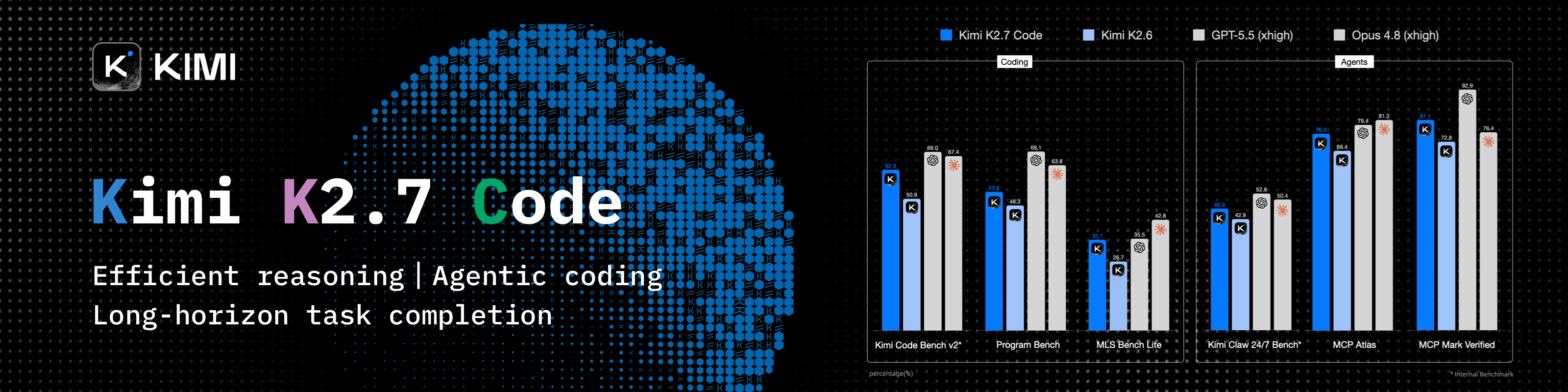
Thanks to Kimi for sponsoring this project! Kimi K3 is Moonshot AI's most capable model and the world's first open 3T-class model. With 2.8 trillion parameters, native vision, and a 1-million-token context window, K3 delivers frontier performance across long-horizon coding, knowledge work, and reasoning.
With cc-connect, you can bring Kimi CLI from your local machine into Feishu/Lark, DingTalk, Telegram, Slack, Discord, WeCom, and other instant messaging tools. Wherever you are, you can continue working on local projects through chat and ask Kimi to inspect or modify code, troubleshoot issues, run commands, and handle automation tasks.
**cc-connect already supports Kimi CLI. Try the Kimi Code subscription, or use the API through the Kimi Open Platform (中文站 | Global).
🆕 What’s New in v1.5.1-beta.1
Beta since v1.5.0 stable — 16 merged PRs. Highlights:
- i18n — Localize agent system prompts (cron/timer/send/relay) based on language config (#1721).
- Cursor — Image attachments delivered via on-disk paths to the Cursor CLI (#1709).
- Feishu — Large file download via HTTP Range chunks, bypassing code=234037 (#1746); fail-closed when bot open_id discovery fails (#1725).
- Weixin — Reply and push paths now have separate send budgets (#1743); inbound dedup is configurable (#1733).
- Claude Code —
/compact and slash commands restored by dropping --replay-user-messages (#1737); bounded session teardown (#1714).
- Codex — Failed app-server turns propagate (#1730); max reasoning effort supported (#1727);
/list reads session names correctly (#1639).
- Pi — Attachments passed as
@path refs (#1724); Windows build fix (#1738).
No breaking changes. See changelogs/v1.5.1-beta.1.md for the full changelog.
🧩 Platform feature snapshot
High-level view of what each built-in platform can do in cc-connect.
Legend
| Symbol | Meaning |
|--------|---------|
| ✅ | Works in stable cc-connect with typical configuration |
| ⚠️ | Partial, needs extra config (e.g. speech / ASR), or limited by the vendor app or API |
| ❌ | Not supported or not applicable in practice |
† QQ (NapCat / OneBot) — unofficial self-hosted bridge; behaviour depends on your NapCat / network setup.
| Capability | Feishu | WPS Xiezuo | DingTalk | Telegram | Slack | Discord | LINE | WeCom | Weibo | Weixin(personal) | QQ† | QQ Bot | Matrix |
|------------|:------:|:----------:|:--------:|:--------:|:-----:|:-------:|:----:|:-----:|:-----:|:-------------------------:|:---:|:------:|:------:|
| Text & slash commands | ✅ | ✅ | ✅ | ✅ | ✅ | ✅ | ✅ | ✅ | ✅ | ✅ | ✅ | ✅ | ✅ |
| Markdown / cards | ✅ | ✅ | ✅ | ✅ | ✅ | ✅ | ⚠️ | ⚠️ | ❌ | ✅ | ✅ | ✅ | ⚠️ |
| Streaming / chunked replies | ✅ | ✅ | ✅ | ✅ | ✅ | ✅ | ✅ | ✅ | ✅ | ✅ | ✅ | ✅ | ✅ |
| Images & files | ✅ | ❌ | ✅ | ✅ | ✅ | ✅ | ⚠️ | ✅ | ❌ | ✅ | ✅ | ✅ | ✅ |
| Voice / STT / TTS | ⚠️ | ❌ | ⚠️ | ✅ | ⚠️ | ⚠️ | ❌ | ⚠️ | ❌ | ✅ | ⚠️ | ⚠️ | ❌ |
| Private (DM) | ✅ | ✅ | ✅ | ✅ | ✅ | ✅ | ✅ | ✅ | ✅ | ✅ | ✅ | ✅ | ✅ |
| Group / channel | ✅ | ✅ | ✅ | ✅ | ✅ | ✅ | ⚠️ | ✅ | ❌ | ✅ | ✅ | ✅ | ✅ |
WeCom: Webhook mode needs a public URL; long-connection / WS style setups often do not.
Voice row: many platforms need [speech] / TTS providers enabled in config.toml; values are a best-effort summary.
Per-platform setup: Platform setup guides below.
✨ Why cc-connect?
🤖 Universal Agent Support
10+ AI Agents — Claude Code, Codex, Cursor Agent, Kimi CLI, Qoder CLI, Gemini CLI, OpenCode, iFlow CLI, Pi, Devin, Copilot — plus any agent that supports the Agent Client Protocol (ACP). Use whichever fits your workflow, or all of them at once.
📱 Platform Flexibility
13 Chat Platforms — Feishu, WPS Xiezuo, DingTalk, Slack, Telegram, Discord, WeChat Work, Weibo, LINE, QQ, QQ Bot (Official), Matrix, plus Weixin (personal ilink) for personal WeChat. Most platforms need zero public IP.
🔄 Multi-Agent Orchestration
Multi-Bot Relay — Bind multiple bots in a group chat and let them communicate with each other. Ask Claude, get insights from Gemini — all in one conversation.
🎮 Complete Chat Control
Full Control from Chat — Switch models (/model), tune reasoning (/reasoning), change permission modes (/mode), manage sessions, all via slash commands.
Directory Switching in Chat — Change where the next session starts with /dir <path> (and /cd <path> as a compatibility alias), plus quick history jump via /dir <number> / /dir -.
🧠 Persistent Memory
Agent Memory — Read and write agent instruction files (/memory) without touching the terminal.
⏰ Intelligent Scheduling
Scheduled Tasks — Set up cron jobs in natural language. "Every day at 6am, summarize GitHub trending" just works.
🎤 Multimodal Support
Voice & Images — Send voice messages or screenshots; cc-connect handles STT/TTS and multimodal forwarding.
📦 Multi-Project Architecture
Multi-Project — One process, multiple projects, each with its own agent + platform combo.
🌍 Multilingual Interface
5 Languages — Native support for English, Chinese (Simplified & Traditional), Japanese, and Spanish. Built-in i18n ensures everyone feels at home.
📋 Prerequisites
Install in this exact order — cc-connect is a bridge for local AI coding agents, so the agent CLI must be installed and authenticated before cc-connect starts. Skipping ahead will cause cc-connect to exit with claudecode: claude CLI not found in PATH (or similar for your chosen agent), and the Web UI on :9820 will never come up.
1️⃣ Install your AI Agent CLI
Pick the agent you want to bridge. You need at least one.
# Claude Code (most common)
brew install --cask claude-code            # macOS / Linux Homebrew
# or
npm install -g @anthropic-ai/claude-code   # any platform via npm

# OpenAI Codex
npm install -g @openai/codex

# Google Gemini CLI
npm install -g @google/gemini-cli

# iFlow CLI
npm install -g @iflow-ai/iflow-cli

# Qoder CLI
curl -fsSL https://qoder.com/install | bash
For Cursor Agent and OpenCode, follow the official install pages:
Verify the binary is on your PATH:
claude --version # or: codex / gemini / opencode / qodercli / cursor-agent ...
2️⃣ Authenticate the agent
Each agent has its own login flow — run the agent once interactively so it stores credentials in your home directory:
claude login           # opens a browser to authenticate
# or
codex login            # /gemini / opencode auth — see the agent's docs
If you skip this step, cc-connect will still start, but the agent will reject every prompt with an auth error.
3️⃣ Install cc-connect
# npm (any platform)
npm install -g cc-connect

# Homebrew (macOS / Linux)
brew install cc-connect

# Or download a binary from https://github.com/chenhg5/cc-connect/releases
4️⃣ Start cc-connect and open the Web UI
cc-connect # starts the service; first run auto-creates ~/.cc-connect/config.toml
On first launch, cc-connect prints something like:
Web admin: http://localhost:9820
Open that URL in your browser. If 9820 is already in use, pass --web-port 9821 or set web_port in config.toml.
Note: cc-connect web only opens the browser and the config UI — it does not start the service. You still need cc-connect running in another terminal.
5️⃣ Configure platform bot tokens in the Web UI
In the Web UI, create a project, then add at least one platform (Feishu / Telegram / Discord / Slack / DingTalk / WeChat Work / QQ / LINE / Weixin) and paste the bot token from that platform's developer console. Save and cc-connect will hot-reload.
That's it — send a message to your bot and cc-connect will relay it to your local agent.
🚀 Quick Start
🤖 Install & Configure via AI Agent (Recommended)
The easiest way — Send this to Claude Code or any AI coding agent, and it will handle the entire installation and configuration for you:
Follow https://raw.githubusercontent.com/chenhg5/cc-connect/refs/heads/main/INSTALL.md to install and configure cc-connect.
📦 Manual Install
Via npm:
npm install -g cc-connect
Via Homebrew (macOS / Linux):
brew install cc-connect
Download binary from GitHub Releases:
# Linux amd64 - Stable
curl -L -o cc-connect https://github.com/chenhg5/cc-connect/releases/latest/download/cc-connect-linux-amd64
chmod +x cc-connect
sudo mv cc-connect /usr/local/bin/
Build from source (requires Go 1.22+):
git clone https://github.com/chenhg5/cc-connect.git
cd cc-connect
make build
⚙️ Configure
💡 Tip: Use the Web UI to configure — After installing, run cc-connect web to configure the web admin and open the dashboard in your browser. You can visually create projects, add platforms, manage providers, and chat with your agent — no need to manually edit TOML files. Note: cc-connect web only configures and opens the browser — you still need to run cc-connect separately to start the service.
If you prefer manual configuration:
mkdir -p ~/.cc-connect
cp config.example.toml ~/.cc-connect/config.toml
vim ~/.cc-connect/config.toml
Set admin_from = "alice,bob" in a project to allow those user IDs to run privileged commands such as /dir and /shell.
admin_from must be placed under [[projects]] (not under [projects.platforms.options]). You can use /whoami or /status to get your current User ID.
When a user runs /dir reset, cc-connect restores the configured work_dir and clears the persisted override stored under data_dir/projects/<project>.state.json.
▶️ Run
./cc-connect
🔄 Upgrade
# npm
npm install -g cc-connect

# Homebrew
brew upgrade cc-connect

# Binary self-update
cc-connect update           # Stable
cc-connect update --pre     # Include pre-releases
📊 Support Matrix
| Component | Type | Status |
|-----------|------|--------|
| Agent | Claude Code | ✅ Supported |
| Agent | Codex (OpenAI) | ✅ Supported |
| Agent | Cursor Agent | ✅ Supported |
| Agent | Gemini CLI (Google) | ✅ Supported |
| Agent | Qoder CLI | ✅ Supported |
| Agent | OpenCode (Crush) | ✅ Supported |
| Agent | iFlow CLI | ✅ Supported |
| Agent | Kimi CLI (Moonshot) | ✅ Supported |
| Agent | Pi (Cursor Background Agent) | ✅ Supported |
| Agent | Copilot (GitHub) | ✅ Supported |
| Agent | ACP (Agent Client Protocol) | ✅ Any ACP-compatible agent |
| Agent | Devin (Cognition) | ✅ Supported (via ACP) |
| Agent | Goose (Block) | 🔜 Planned |
| Agent | Aider | 🔜 Planned |
| Platform | Feishu (Lark) | ✅ WebSocket — no public IP needed |
| Platform | DingTalk | ✅ Stream — no public IP needed |
| Platform | WPS Xiezuo | ✅ WebSocket — no public IP needed |
| Platform | Telegram | ✅ Long Polling — no public IP needed |
| Platform | Slack | ✅ Socket Mode — no public IP needed |
| Platform | Discord | ✅ Gateway — no public IP needed |
| Platform | Weibo | ✅ WebSocket — no public IP needed |
| Platform | LINE | ✅ Webhook — public URL required |
| Platform | WeChat Work | ✅ WebSocket / Webhook |
| Platform | Weixin (personal, ilink) | ✅— HTTP long polling — no public IP needed |
| Platform | QQ (NapCat/OneBot) | ✅ WebSocket |
| Platform | QQ Bot (Official) | ✅ WebSocket — no public IP needed |
| Platform | Matrix | ✅ Long Polling (/sync) — no public IP needed |
📖 Platform Setup Guides
| Platform | Guide | Connection | Public IP? |
|----------|-------|------------|------------|
| Feishu (Lark) | docs/feishu.md | WebSocket | No |
| DingTalk | docs/dingtalk.md | Stream | No |
| WPS Xiezuo | docs/wps-xiezuo.md | WebSocket | No |
| Telegram | docs/telegram.md | Long Polling | No |
| Slack | docs/slack.md | Socket Mode | No |
| Google Chat | docs/googlechat.md | Cloud Pub/Sub | No |
| Discord | docs/discord.md | Gateway | No |
| Weibo | docs/weibo.md | WebSocket | No |
| WeChat Work | docs/wecom.md | WebSocket / Webhook | No (WS) / Yes (Webhook) |
| Weixin (personal) | docs/weixin.md | HTTP long polling (ilink) | No |
| QQ / QQ Bot | docs/qq.md | WebSocket | No |
| Matrix | docs/matrix.md | /sync (Long Polling) | No |
🎯 Key Features
💬 Session Management
/new [name]       Start a new session
/list             List all sessions
/switch <id>      Switch session
/current          Show current session
/dir [path|reset] Show, switch, or reset work directory
Project configs rotate to a fresh session automatically after long inactivity. This prevents "context drift" where stale chat history (failed commands, debugging noise) is repeatedly re-ingested via --continue and starts to dominate the model's attention. The previous session is preserved and remains accessible via /list and /switch.
[[projects]]
reset_on_idle_mins = 30   # default when unset; set to 0 to disable
The default is 30 minutes when unset. Set reset_on_idle_mins = 0 to opt out and always continue the previous session.
🛡️ OS-User Isolation (run_as_user)
On Linux/macOS, a project can spawn its agent under a different Unix
user for OS-level file-system isolation from the supervisor user that
runs cc-connect. Currently supported by Claude Code.
[[projects]]
name = "claude-sandboxed"
run_as_user = "partseeker-coder"
run_as_env = ["PGSSLROOTCERT"]
The target user needs passwordless sudo from the supervisor, no sudo
of its own, read+write on work_dir, and its own ~/.claude/settings.json
with whatever credentials the agent uses. If you authenticate via
claude.ai OAuth, symlink the target user's ~/.claude/.credentials.json
to the supervisor's copy so token refresh stays in sync — see the
environment propagation checklist
for details. See
docs/usage.md
for the full setup.
Before starting cc-connect, audit the setup with:
cc-connect doctor user-isolation
This runs three go/no-go preflight gates and an isolation probe that
reports what the target user can and cannot read. cc-connect refuses to
start if any gate fails or if the probe detects a cross-user leak.
🔐 Permission Modes
/mode             Show available modes
/mode yolo        # Auto-approve all tools
/mode default     # Ask for each tool
🔄 Provider Management
/provider list              List providers
/provider switch <name>     Switch API provider at runtime
🤖 Model Selection
/model                      List available models (format: alias - model)
/model switch <alias>       Switch to model by alias
📂 Work Directory
/dir                         Show current work directory and history
/dir <path>                  Switch to a path (relative or absolute)
/dir <number>                Switch from history
/dir -                       Switch to previous directory
/cd <path>                   Compatibility alias for /dir <path>
⏰ Scheduled Tasks
/cron add 0 6 * * * Summarize GitHub trending
📎 Agent Attachment Send-Back
When an agent generates a local screenshot, chart, PDF, bundle, or other file, it can send that attachment back to the current chat.
First release supports:
If your agent does not natively inject the system prompt, run this once in chat after upgrading:
/bind setup
or:
/cron setup
This refreshes the cc-connect instructions in the project memory file so the agent knows how to send attachments back.
You can control this feature globally in config.toml:
attachment_send = "on" # default: "on"; set to "off" to block image/file send-back
This switch is independent from the agent's /mode. It only controls cc-connect send --image/--file. Voice send-back uses the TTS config instead.
Examples:
cc-connect send --image /absolute/path/to/chart.png
cc-connect send --file /absolute/path/to/report.pdf
cc-connect send --file /absolute/path/to/report.pdf --image /absolute/path/to/chart.png
cc-connect send --tts "Hello from cc-connect"
Notes:
- Absolute paths are the safest option.
--image and --file can both be repeated.--tts sends synthesized speech when the user asks for a voice reply.attachment_send = "off" disables only attachment send-back; ordinary text replies still work.- Attachments are capped at 50 MiB by default; configure with
max_attachment_size_mb (or CC_MAX_ATTACHMENT_SIZE_MB env, same MiB unit).
- This command is for generated attachments, not ordinary text replies.
📖 Full documentation: docs/usage.md
📚 Documentation
👥 Community
☕ Support the Project
If cc-connect has been helpful to you, consider buying us a coffee! Your support helps us:
- 🛠️ Maintain and improve the project
- 📚 Write better documentation and tutorials
- 🐛 Fix bugs and add new features faster
- ☕ Keep the developers caffeinated
How to Donate
Buy Me a Coffee: https://buymeacoffee.com/cg33
WeChat Pay / Alipay:
| WeChat Pay | Alipay |
|:----------:|:------:|
| | |
Thank You, Donors! 🎉
We're grateful to everyone who has supported this project. Leave your GitHub username in the donation message if you'd like to be recognized here!
| Avatar | GitHub Username | Date |
|--------|-----------------|------|
| | @thx0701 | 2026-04-29 |
🤝 Commercial Cooperation
We accept the following commercial collaborations:
- Enterprise Customization: Custom deployment for internal AI tooling (Feishu, DingTalk, WeChat Work, Slack, etc.)
- Technical Consulting: AI agent integration and architecture design
- Outsourcing Projects: AI-related system development
Contact: Email: chg80333@gmail.com | WeChat: mongorz | Telegram | Discord
🙏 Contributors
⭐ Star History
📄 License
MIT License
No comments yet. Set the tone — say what you would want to know.